Before you spend an evening hunting for extra copies of the same picture, check the tool already on your iPhone. Apple Photos can find duplicates and combine them for you.
The button you want is called Merge. That name can sound a little odd when your goal is to delete something, but it describes the job: keep one version, bring together the useful information, and remove the redundant copies.
You do not need to install another app for this. The directions below follow iOS 26; the duplicate-detection feature is available from iOS 16 onward, although older layouts put the controls in different places.
How to merge duplicate photos in Apple Photos
- Open Photos on your iPhone.
- Tap Collections, find Utilities, and open Duplicates.
- Look through a group of matching photos or videos.
- Tap Merge beside that group, then confirm Merge [number] Items.
Photos keeps one item with the highest image quality and relevant data. The extra copies move to Recently Deleted. These steps follow Apple’s guide to merging duplicates.
See every tap, step by step
Click through the screenshots to see how to merge a batch of duplicates in Apple Photos.
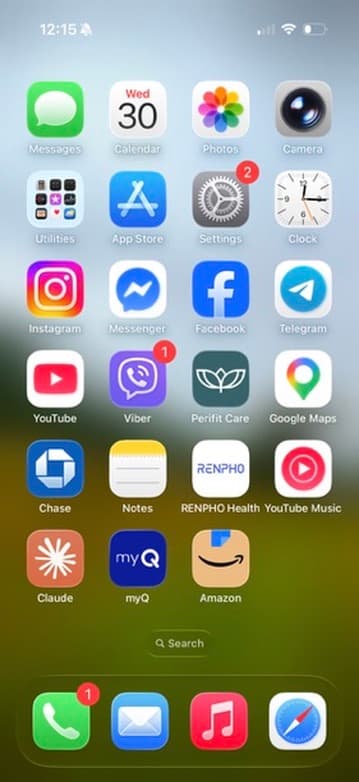
Open Photos
Tap the colorful Photos icon on your Home Screen.
iOS 26 · Counts and options depend on your selection. Account photo hidden for privacy.
Can you delete several groups of duplicates at once?
Yes. In Duplicates, tap Select, select the groups you want to combine, then tap Merge and confirm. There is also a Select All option for handling every detected group. Apple describes these controls in its photo deletion guide.
It is worth doing one group first. You get to see the result before applying the action across a larger selection, and there is no pressure to finish the whole list in one sitting.
If you have years of imported pictures, take the groups in batches. A shorter list is easier to review carefully than a screen full of selections you no longer remember making.
Why can’t you see Duplicates?
A missing Duplicates collection does not necessarily mean something is broken. Photos might not have found matching items, or it might still be working through your library.
Apple says detection needs the iPhone to be locked and connected to power. Let it charge while you are not using it. Indexing and detection can take a few days, depending on the library and other activity. The collection appears only when duplicates are found. See Apple’s explanation of a missing Duplicates album.
If you have just transferred a large library, give the phone time before repeatedly checking the same screen. And if the pictures you have in mind are different shots of one scene, they may still need a manual review.
What happens to the extra copies?
They normally remain in Recently Deleted for 30 days, giving you a recovery window. Permanently deleting them there removes that option. With iCloud Photos enabled, deletions also apply to your other synced devices. Apple explains deletion, recovery, and iCloud syncing.
For a large cleanup, make a separate copy of anything you could not replace before you begin. A synced library is useful for keeping devices up to date, but you should not expect another synced device to preserve a picture you delete.
You do not have to empty Recently Deleted to call the organizing job finished. Give yourself time to look at the result. If storage is urgent, check the removed items carefully before choosing permanent deletion.
What about five slightly different photos of the same moment?
That is a different kind of decision. One photo may have the better smile; another may include someone who stepped out of the next frame. Those differences can be the reason to keep both.
Use Duplicates for the groups Photos identifies. Then, if your camera roll still feels crowded, compare the remaining similar shots on their own merits. You do not need to force every moment down to a single picture.
Our guide to reviewing thousands of iPhone photos in small sessions helps with that slower part. When you have a selection you want to revisit, the album-organizing guide gives it a useful home.
Start with the duplicates your phone has already found. It is one small piece of photo cleanup you can handle without designing a whole new system.
About this guide
Apple feature instructions were checked against the linked support documentation on September 9, 2026. For a broader workflow, read How to Organize Photos on iPhone: A Simple System.