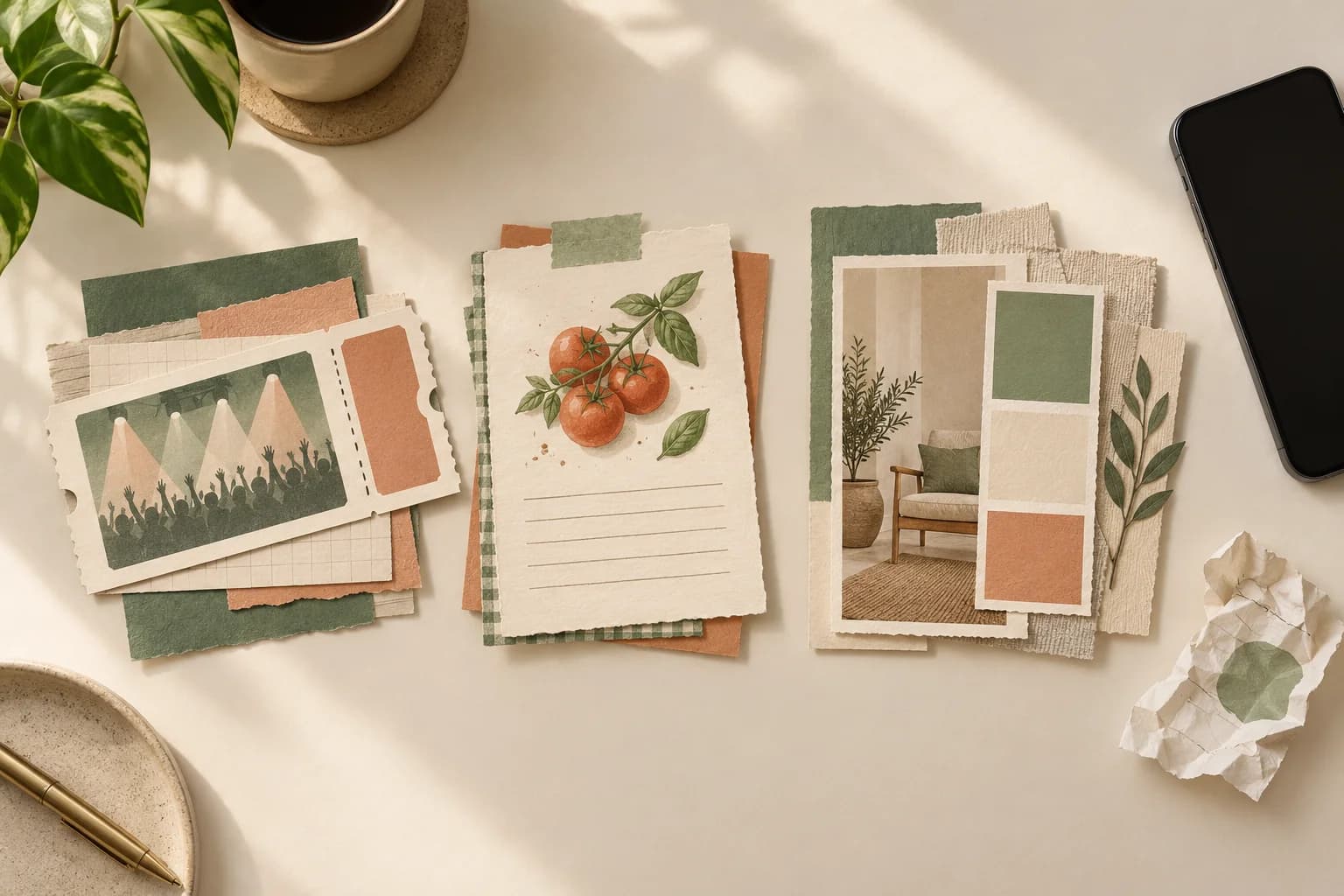
Screenshots are useful. You save a ticket, a recipe, a message, or an idea for later. But mixed between holiday photos and family moments, they can make your camera roll feel cluttered.
You do not have to delete those references to enjoy browsing your photos. Apple Photos lets you change what appears in the Library grid while keeping the screenshots in your library.
A cleaner view. Everything still saved.
In the layout shown below, open Library → Sort and Filter → Media Types. Select Photos and Videos, leaving Screenshots unchecked. Your screenshots disappear from this view, but you still have them.
How to keep screenshots out of the camera roll
Follow these four screens. Menu names and placement can vary with your iOS version; the final checkmarks are the important part.
Swipe or scroll sideways to follow the four steps.
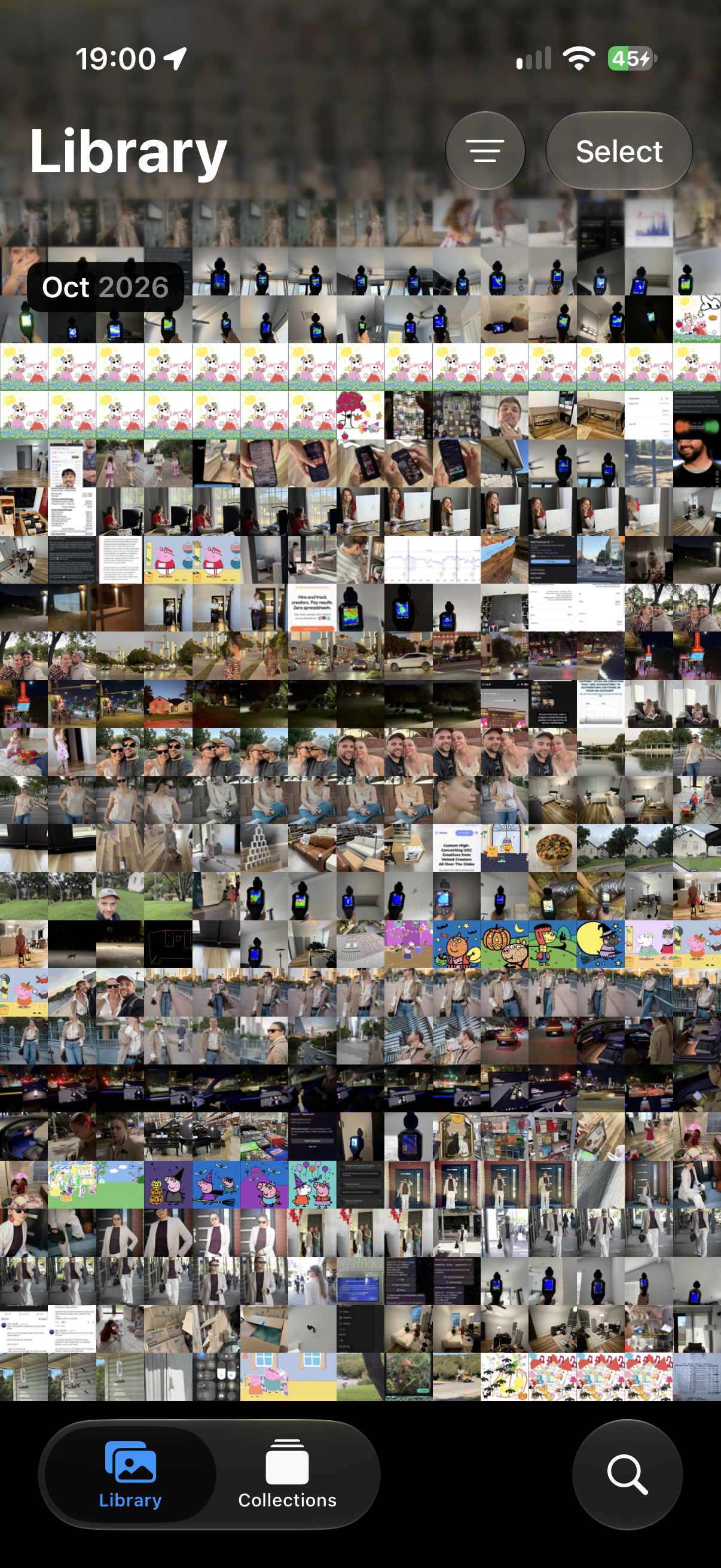
Open Library and tap the filter button
Open Photos and go to Library. Tap the button with three horizontal lines beside Select, near the top right.
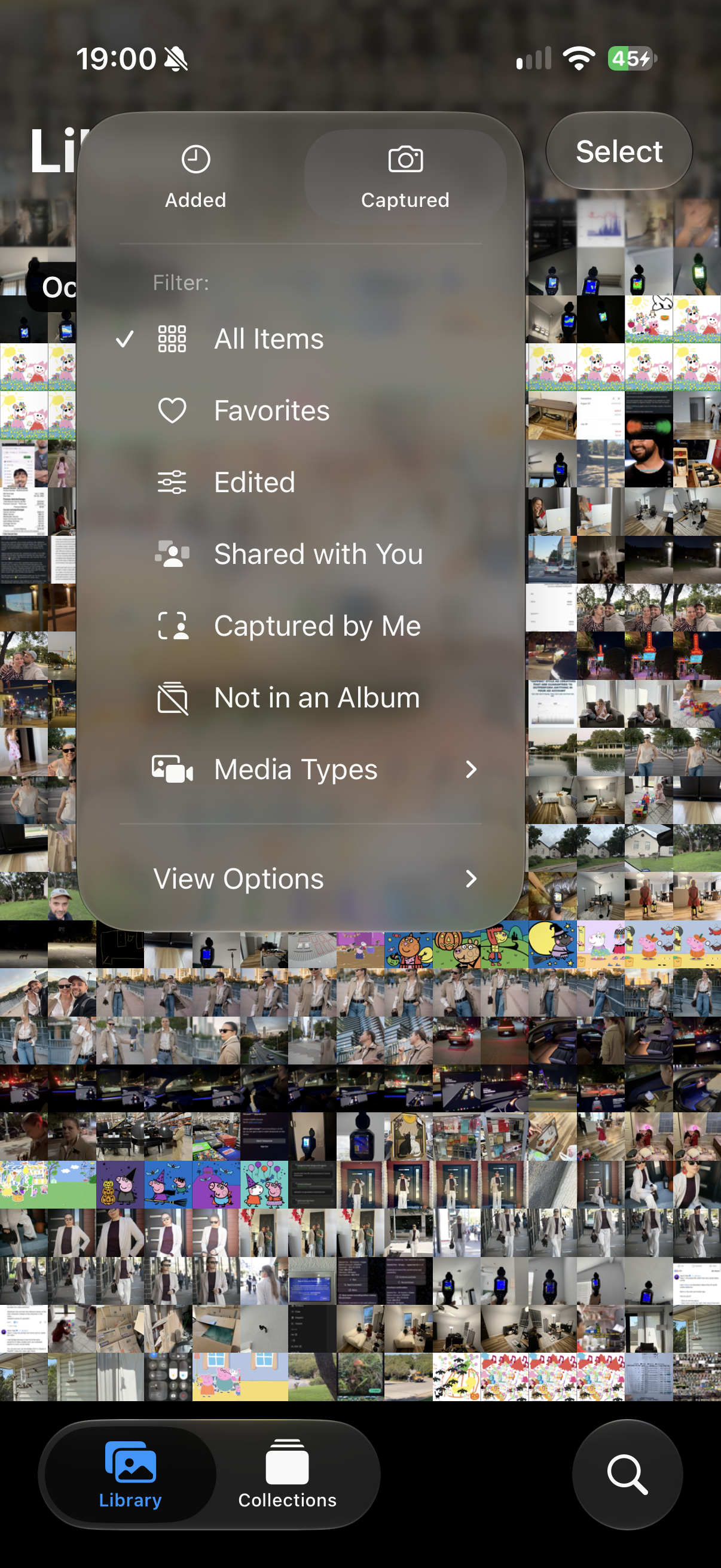
Open Media Types
In the menu, tap Media Types. This lets you choose which kinds of images and videos appear in the grid.
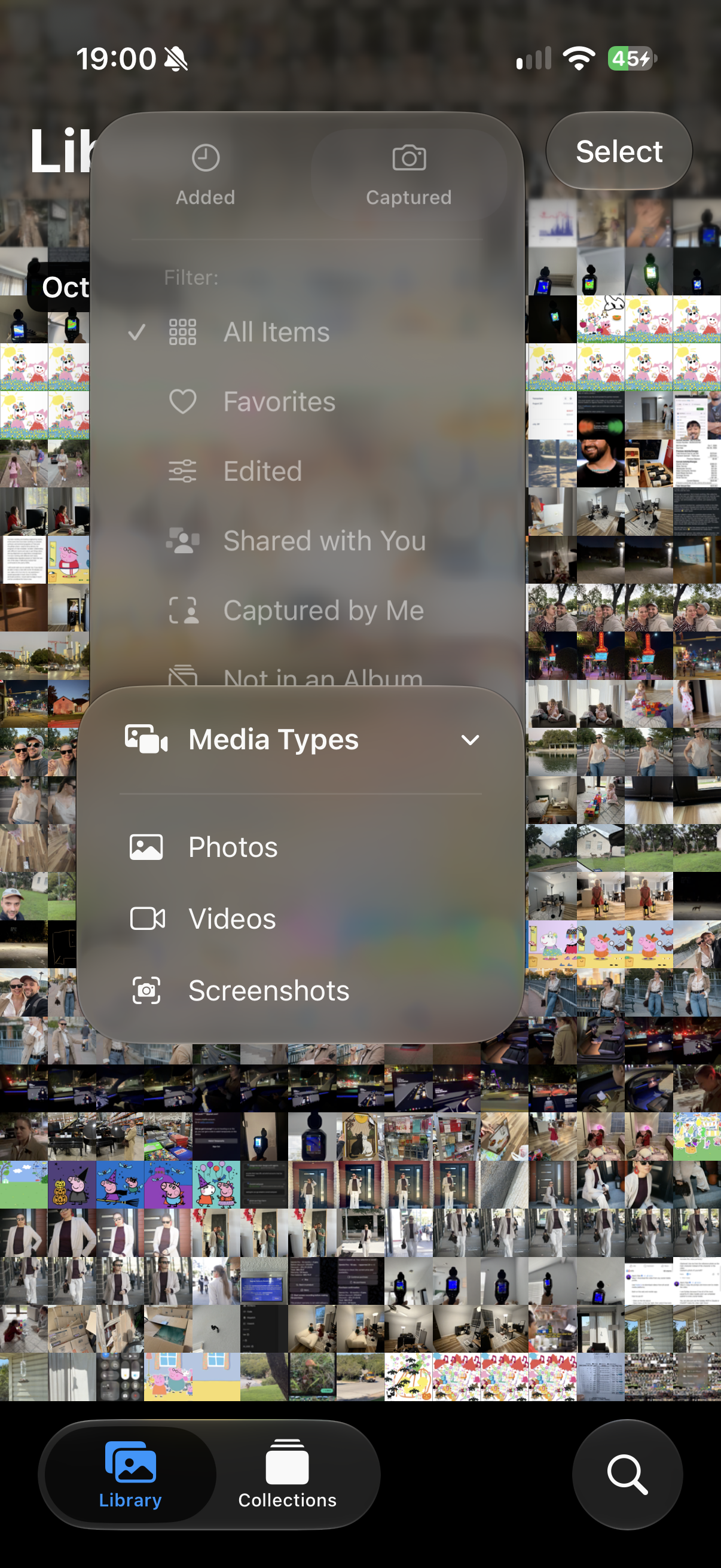
Choose the types you want to see
The submenu lists Photos, Videos, and Screenshots. In this screenshot, All Items is still selected, so the library includes everything.
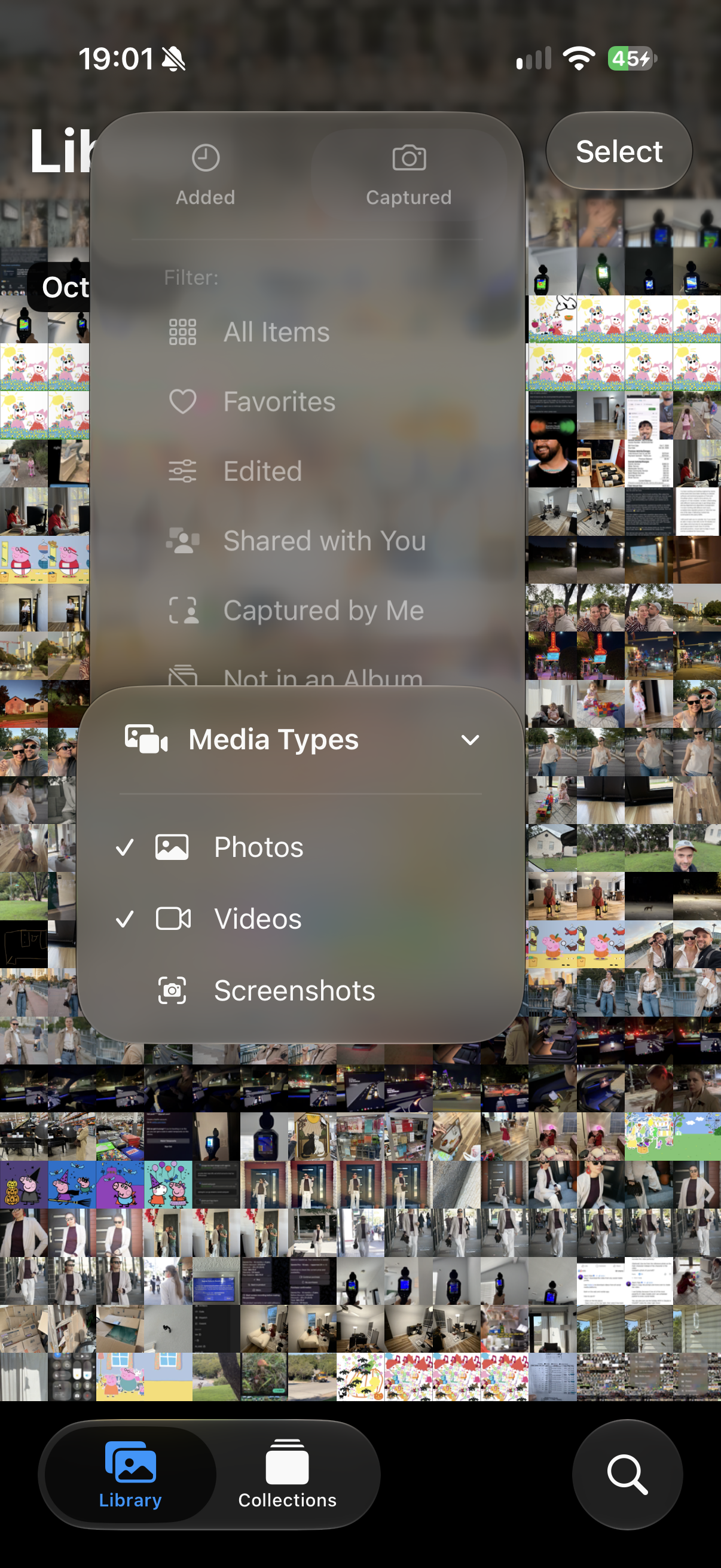
Select Photos and Videos, leaving Screenshots unchecked
Tap Photos and Videos so both have checkmarks. Leave Screenshots unchecked, as shown here. Tap outside the menu to return to your camera roll.
A different menu? Apple also documents Sort and Filter → View Options → Screenshots as a way to hide screenshots from the library view. If you use that option, turn Screenshots off. See Apple’s guide to library filters and view options.
Out of the grid does not mean deleted
Think of this as choosing what to display. You have not selected any files for deletion, moved them to Recently Deleted, or thrown away your saved information.
Your concert ticket is still there. So is the recipe you want to try and the message you wanted to remember. They simply stop interrupting the photos and videos you are browsing.
This does not free storage, because the files remain saved. It also does not move screenshots into the locked Hidden collection or make them private. It is a way to reduce visual clutter.
Where to find your screenshots afterward
When you need one, open Photos → Collections → Media Types → Screenshots. That gives you a place to browse screenshots together, instead of searching between all your other pictures. Apple lists this location in its screenshot guide.
You can keep taking screenshots for useful things. There is no need to decide whether every new reference deserves a permanent place among your memories before saving it.
How to show screenshots in the camera roll again
Open the filter menu and return to All Items, or use Remove Filters if that is the option shown. If you hid screenshots through View Options, turn Screenshots back on there too.
Nothing needs restoring from Recently Deleted: you only changed the view. You can switch back whenever seeing everything together is more useful.
Make your library nicer to browse
This small change lets your photos take center stage while your saved references remain within reach. For a broader setup, read our guide to organizing iPhone photos, or create a few albums you will actually use.
The walkthrough uses real iPhone screenshots. Apple’s linked documentation was checked on October 21, 2026.