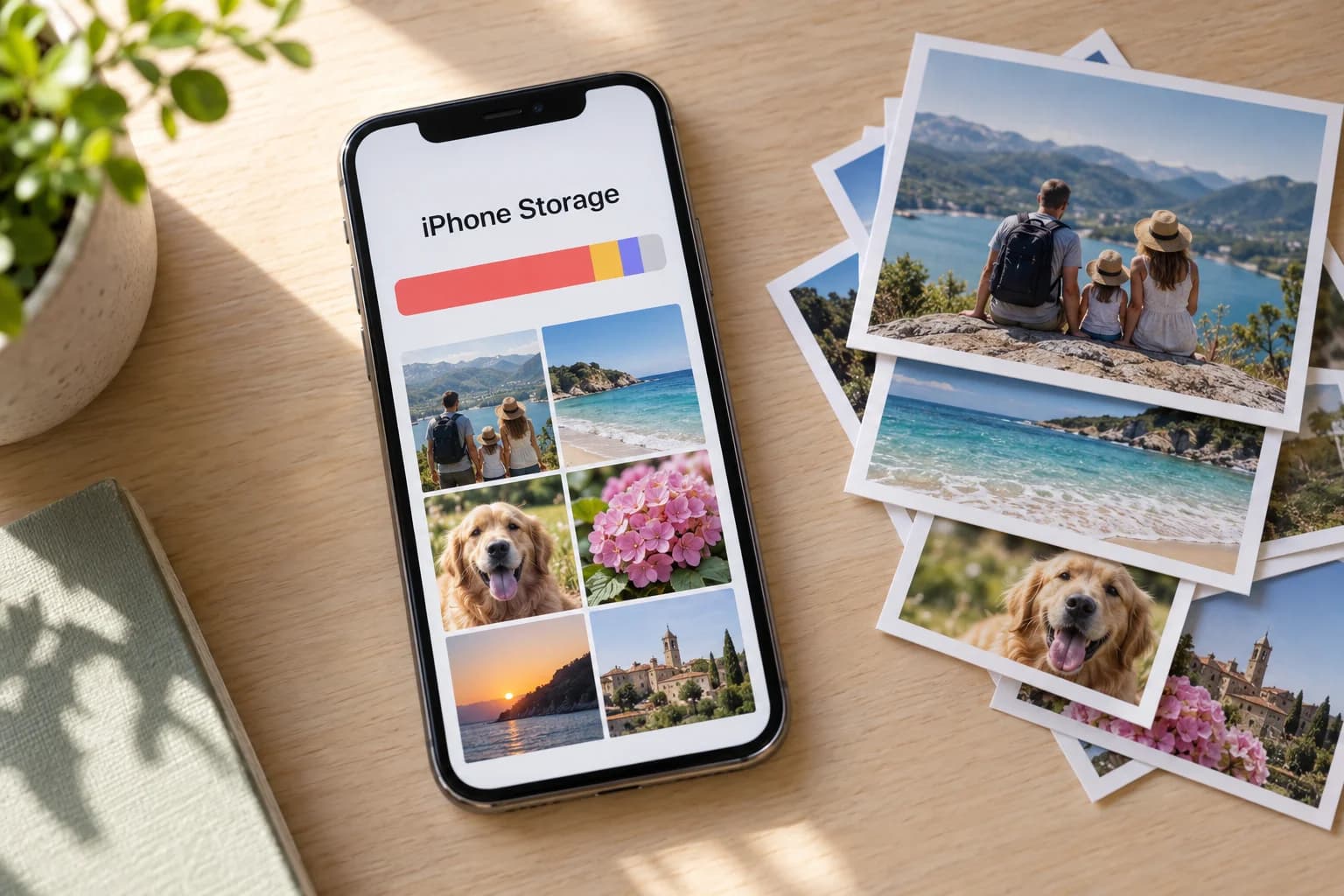
A storage warning should not force you to choose between taking the next photo and keeping an old favorite. First find out what is full. Then choose a way to make room that keeps your originals safe.
The safest starting point
If you want every photo to stay accessible in Apple Photos, check Optimize iPhone Storage with iCloud Photos. If you want to keep pictures outside iCloud, make and verify independent copies before removing anything from your library.
Do not delete photos just because they are visible in iCloud. With iCloud Photos enabled, deletion also applies to iCloud and your other synced devices. Apple explains this in its photo deletion guide.
1. Check whether your iPhone or iCloud is full
These are separate storage limits. A larger iCloud plan does not increase the physical capacity of your phone, and a phone with free space can still have a full iCloud account.
- On your iPhone: open Settings → General → iPhone Storage. Check how much Photos uses compared with other apps.
- In iCloud: open Settings → your name → iCloud. Review the storage breakdown.
Apple’s photo storage guide explains both screens. Note the figures before changing anything so you can check the result later.
If Photos is only a small part of the problem, start elsewhere. For example, review downloaded entertainment you can obtain again rather than rushing decisions about family pictures. Only remove content you recognize and know you can replace.
2. Use optimization if you want to keep the whole library
- Open Settings → your name → iCloud → Photos.
- If you want to use iCloud Photos, enable Sync this iPhone. This uploads your library to iCloud and requires enough iCloud storage.
- Choose Optimize iPhone Storage. In iOS 27 or later, open iPhone Storage on this settings screen first; in earlier versions, the option appears directly.
Optimization keeps full-resolution originals in iCloud and smaller versions on the phone when space is needed. It does not promise to free a particular number of gigabytes immediately. Your library still uses some local storage, and opening an original may require an internet connection. See Apple’s explanation of iCloud Photos and optimization.
Allow time for uploading and check the library’s sync status in Photos. If syncing is paused or reports a storage problem, resolve that before assuming your latest pictures are stored in iCloud. Keep the phone connected to reliable Wi-Fi and power while a large library uploads.
If you prefer not to upload your photos, use the independent-copy workflow below. Optimization depends on iCloud Photos; it is not an offline compression button.
3. Make an independent copy before removing keepers
A second device showing the same synced library is not an independent archive. For photos you cannot replace, keep copies outside that sync relationship.
- Choose a manageable batch. One month or one trip is easier to verify than years of pictures at once.
- Export to a computer or external drive. Follow our month-by-month flash-drive backup guide for the iPhone workflow.
- Check the actual files. Open photos and play videos from the destination. Check the date range and include the particular pictures you care most about.
- Keep a second independent copy. If you later remove these items from Photos, a lone flash drive would become their only home.
Apple documents ways to archive photos from iCloud. Exporting unmodified originals preserves the version before your edits; save edited versions separately if those matter too. Keep all component files together and check Live Photos in compatible software.
Copying alone does not free iPhone space. It gives you a verified archive so you can decide whether selected items should remain in the active library. Only remove them after checking your copies and understanding how deletion affects your synced devices.
Think about access as well as capacity. If you frequently look at a certain year of family photos, keeping it in Photos with optimization may be more convenient than retrieving it from a drive.
4. Review the easy decisions before the difficult ones
You do not need a deletion target. Start with items whose purpose has clearly ended: a screen recording of a temporary problem, a screenshot of an expired ticket, or a video you already saved elsewhere and no longer want in your active library.
For extra copies, use our guide to merging duplicates in Apple Photos. For several different shots of one moment, compare them before choosing. A blur or an awkward expression can still be part of a memory you want.
Lumenist can help you review photos one day at a time and compare similar shots. It does not replace a backup, and you do not need it to change Apple’s storage settings. Our small-session organizing guide offers a routine you can use at your own pace.
5. Understand Recently Deleted before emptying it
Deleted photos and videos normally remain recoverable for 30 days in Recently Deleted. Removing them there permanently ends that recovery option. Review the contents carefully; do not use Delete All as a routine final step.
In current Photos layouts, open Collections → Utilities → Recently Deleted, then unlock it to review the items. Recover anything you still want. Apple provides the current controls in its deletion and recovery instructions.
After your changes, revisit iPhone Storage. Allow time for syncing and storage figures to update. A different number is useful feedback, but it is not evidence that your archive is complete—checking the copied files is a separate step.
Common questions
Can I delete photos from my iPhone but keep them in iCloud?
Not by deleting them from a library that is still syncing with iCloud Photos. Use optimization when your goal is to reduce local storage while keeping access to the pictures. Turning sync off changes how the device participates in the library; do not treat it as a shortcut without first checking where your originals are stored.
Will buying more iCloud storage immediately fix a full iPhone?
No. It provides more cloud capacity. Local space savings depend on your Photos settings and the progress of syncing and optimization.
Does putting photos into albums free space?
No. Albums organize the library; they are not a storage-reduction method. Use them to find and enjoy pictures, not to shrink the files.
What if I want every original available offline?
Those originals need enough physical storage somewhere. You can keep an archive on a computer or external drive, but pictures removed from your phone will no longer be available there in the same way. Choose the tradeoff deliberately.
About this guide
Instructions were checked against the linked Apple documentation on September 19, 2026. This is a documentation-based guide, not a measured storage-saving test. Menus and results vary by iOS version, library, and settings. Start with one small, verified change rather than a whole-library cleanup.